
Introduction
The purpose of this article is to explain which payment methods PlanetHoster accepts for invoices. We will also cover how to use the interface to make payments.
You can pay invoices while logged into your account, or you can do so without logging in.
Prerequisites
Enter the following address in your web browser: https://my.planethoster.com.
Access to the Invoice Interface
- Go to Billing & Payments -> History.
- Open the invoice by clicking on the See invoice icon under Manage:

- This opens the interface for the invoice:

| A | Invoice information display area. |
| B | Invoice payment area. |
| C | Icons to download or print the invoice. |
| D | Icons for browsing account invoices. |
Payment via Invoice Interface
Step 1 — Choose a Payment Method
- Connect to your account.
- Go to Billing & Payments -> History.
- Open the invoice by clicking on the See invoice icon under Manage.
- Look for Payment Methods in the Invoice payment aera and click on the desired method.
Step 2 — Complete Order
What happens next depends on the payment method.
Credit Card
Visa and Mastercard are accepted. Simply fill in the required information and click on the Complete Order button:

PayPal
After clicking on the PayPal and Complete Order buttons, you will be redirected to the PayPal website to complete your payment securely:


Skrill (Moneybookers / Bitcoins)
After clicking on the Skrill and Complete Order buttons, you will be redirected to the Skrill website to complete your payment securely:

Wire Transfer
After clicking on the WIRE TRANSFER and Complete Order button, you will be asked to download a PDF file containing all the information required to make your payment:

Please indicate the invoice number for the payment, which must be at least 500 monetary units.
Remarks :
- For all transactions, customers must provide an official receipt from their banking institution. This receipt must be sent to our sales department (billing) by e-mail: commercial@support.planethoster.info. Once the transaction has been completed, the order can be accepted and the account activated.
- Please note that processing time is 24 to 72 hours after receipt of payment. Each bank’s transfer time varies.
- Transaction costs must be borne by the customer.
- For instant payment, the customer can opt for payment by credit/bank card, Paypal or Moneybookers / Skrill.
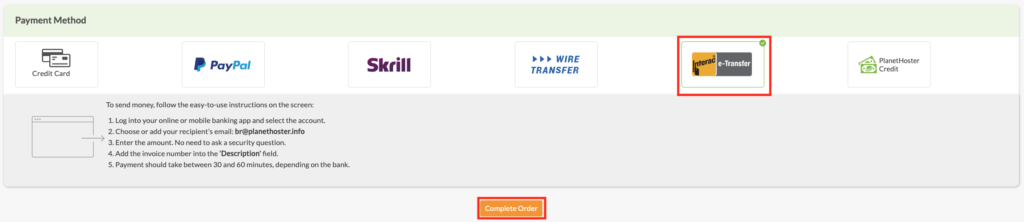
Interac
To send money, click on Interac and on the Complete Order buttons and follow the easy-to-use instructions on the screen:
- Log into your online or mobile banking app and select the account.
- Choose or add your recipient’s email: br@planethoster.info.
- Enter the amount. No need to ask a security question.
- Add the invoice number into the Description field.
- Payment should take between 30 and 60 minutes, depending on the bank.
PlanetHoster Credits
Apply Credit and click on the Apply PlanetHoster’s Credits button:

Payment Without Being Logged In
- Enter the following address in your web browser: https://my.planethoster.com/v2/pay-invoice.
- Enter the invoice number in the Invoice Number field and click on the Pay as a guest button :

- Provide Client Information, locate Payment Method at the bottom of the interface and click on the desired method to proceed to payment (the amount to pay is displayed in the Summary):
