
Introduction
The client area (also known as the customer area or the member area) is a secure online platform that allows customers to access specific information and features related to PlanetHoster’s services via the URL https://my.planethoster.com/. This is the central interface with My, where customers manage their web hosting, domain names, billing, technical support requests, and product or service orders.
To take advantage of the products PlanetHoster offers its customers, you must first sign up for our client area by creating an account. After that, all you need to do is log in to the client area. This article explains how to complete these two steps.
Prerequisites
The dialog boxes allowing to sign up (account for new clients) or login in can be accessed by going to the PlanetHoster website https://www.planethoster.com/ and click on the LOGIN button:

You can also use this link directly: https://my.planethoster.com/client-area.
This interface will then open:

Sign Up for New Customers
New customers have to create an account with the dialog box Not a member yet? To do so:
- Click on the Sign up button :

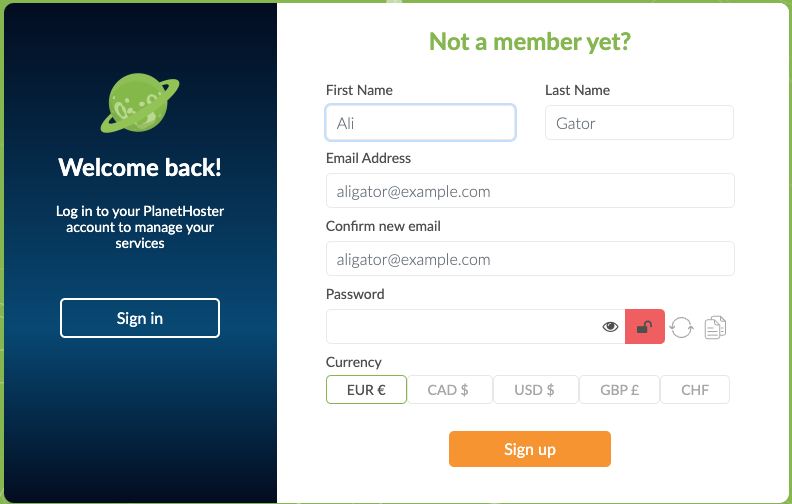
- Fill in the required information:
- You will use your Email Address and your Password each time you will have to login to your account.
- The chosen Currency will be used for billing.
- Take note of your Email Address and Password and do not lose them.
- Click on the Sign up button: your account is created.
Login to the Client Area
To login to your PlanetHoster account, in the Client Area Login dialog box:
- Enter your Email Address. This is the email address associated with your PlanetHoster account.
- The Password is the one you chose when you made the order.
- If you do not remember it, click on Forgot Your Password? and follow the instructions provided.
- Click on the Login button.
- Enter the verification code as required.
- Please refer to the article How to Set Up Two-Factor Authentification if needed.
- This opens the Client Area. Please refer to the article How to Use The Client Area Interface.